You choose on day one
The first time you open Snag, one screen asks where captures should go. Your Snag account is ticked, so Snag works straight away, and it says plainly where your captures are kept.
Tick Obsidian, Todoist, Notion, Reminders, Nextcloud or anything under More to send there too. Untick your Snag account if you'd rather use only your own tools. Change it any time in Settings.
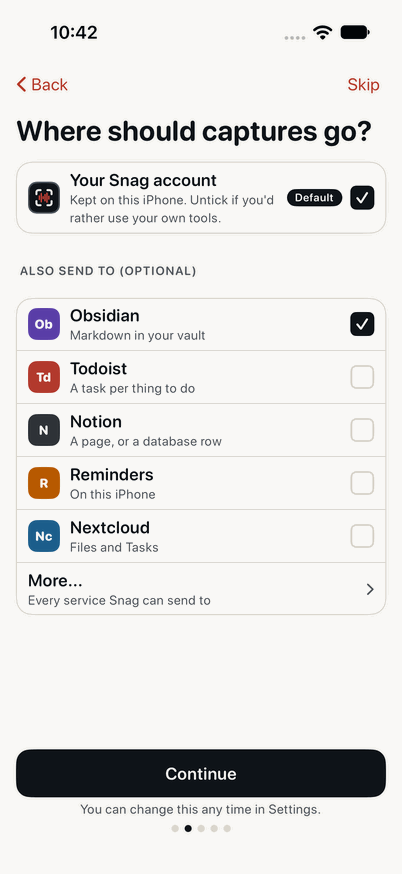
One default, and Send to
Captures go to your Snag account until you pick something else. Connecting a service asks if you want it as the new default. It never switches by itself.
Free: your Snag account and one destination.
Pro: every destination connected at once. The Send to button sends a single capture somewhere other than the default.
No signal? Each destination waits and retries on its own, so one that's down doesn't hold up the rest.
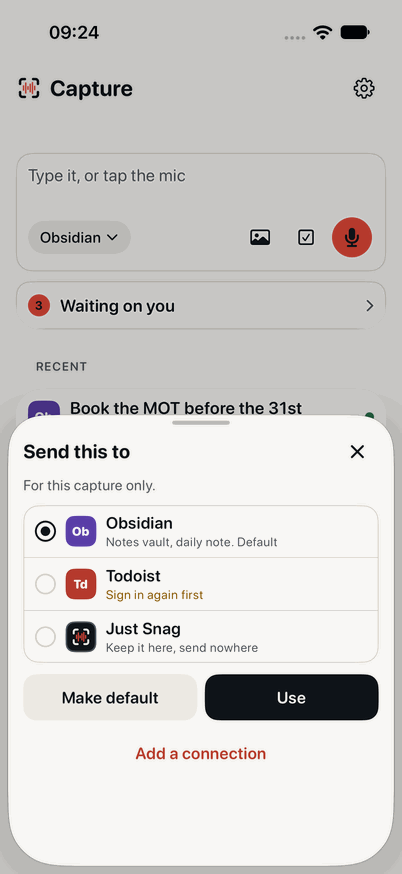
All sixteen destinations
Connecting is a sign-in on the service's own page where it offers one, and a folder pick for Obsidian. Snag never sees your passwords. A few services start with a token you copy from that service's settings instead; Snag shows you where to find it.
 Your Snag account
- What lands where
- Everything you capture, with its actions, in Recent on the phone.
- How it connects
- Nothing to connect. It's there from the start.
- What it sees
- What you send it. The privacy notice says where it's kept and who handles it.
 Nextcloud
- What lands where
- Your own server. Notes into a folder, tasks into Nextcloud Tasks, and recordings and photos as files beside the note.
- How it connects
- Type your server's address, then sign in on your server's own page. Snag gets an app password, never your password.
- What it sees
- Only your server. We never see it.
 Obsidian
- What lands where
- Added to today's daily note, with actions as checkboxes.
- How it connects
- Pick your vault's folder on the phone. No account and no sign-in.
- What it sees
- Nobody but you: it's a file in your vault, synced however you already sync it.
 Apple Reminders
- What lands where
- Tasks go straight into a Reminders list on the phone. You pick the list.
- How it connects
- The first time, your iPhone asks if Snag can add to Reminders, and Snag says why.
- What it sees
- It stays in Reminders on your phone, and follows your own iCloud settings from there.
 Apple Notes
- What lands where
- Through Shortcuts, into the notes you already keep.
- How it connects
- Add Snag's shortcut once. It runs on the phone.
- What it sees
- It stays in Notes on your phone, and follows your own iCloud settings from there.
 Todoist
- What lands where
- Into the project you pick, with Quick Add's dates.
- How it connects
- Sign in on Todoist's own page.
- What it sees
- Your own Todoist account gets the capture's text and its actions, and Todoist's privacy terms apply.

 Microsoft To Do and OneNote
- What lands where
- Tasks into a To Do list, notes into a OneNote section.
- How it connects
- Coming soon: one Microsoft sign-in will cover both.
- What it sees
- Your own Microsoft account gets the capture's text and its actions, and Microsoft's privacy terms apply.
 Google Tasks
- What lands where
- Into your Google task lists.
- How it connects
- Coming soon: sign in with Google, on Google's own page.
- What it sees
- Your own Google account gets the capture's text and its actions, and Google's privacy terms apply.
 TickTick
- What lands where
- Into your TickTick lists.
- How it connects
- Coming soon: sign in on TickTick's own page. Until then, use Email in with your TickTick inbox address.
- What it sees
- Your own TickTick account gets the capture's text and its actions, and TickTick's privacy terms apply.
 Trello
- What lands where
- A card for each capture with its actions as a checklist, or a card for each action.
- How it connects
- Coming soon: sign in on Trello's own page, then pick a board and list.
- What it sees
- Your own Trello account gets the capture's text and its actions, and Trello's privacy terms apply.
 Asana
Asana- What lands where
- A task for each action, in the project you choose.
- How it connects
- Sign in on Asana's own page.
- What it sees
- Your own Asana account gets the capture's text and its actions, and Asana's privacy terms apply.
 Notion
- What lands where
- A page for each day, or a row in a database you choose.
- How it connects
- Sign in on Notion's own page and choose which pages Snag can add to.
- What it sees
- Only the pages you shared with Snag. Your own Notion account gets the capture's text and its actions, and Notion's privacy terms apply.
 Things
- What lands where
- Into your Things inbox.
- How it connects
- Things on the same iPhone. No sign-in.
- What it sees
- It goes into Things on your phone, and syncs the way you've set Things to sync.
 Evernote
- What lands where
- A note in the notebook you pick. Or send by email to your Evernote address.
- How it connects
- Paste your Evernote email address. Signing in on Evernote's own page to pick a notebook is coming soon.
- What it sees
- Your own Evernote account gets the capture's text and its actions, and Evernote's privacy terms apply.
 Email in
- What lands where
- Any app with an inbox address: OmniFocus, TickTick, Todoist and Things all have one.
- How it connects
- Paste the app's inbox address.
- What it sees
- The service behind that address gets the capture as an email, and decides what happens to it.
 A webhook
- What lands where
- Each capture posted to a web address you choose. Zapier, Make, n8n or your own tools.
- How it connects
- Paste the address. Add a secret if you want one: Snag sends it in an
X-Snag-Secretheader, so your end can turn away anything without it. - What it sees
- Whoever runs that address gets the capture, and decides what happens to it.
For builders
Webhooks, workflows and your own stack
Capturing to a webhook is free. Commands, where a phrase runs your workflow and Snag says the answer back, are part of Pro.
- Webhooks
Any web address. Command calls are signed with Standard Webhooks once a signing secret is set, so your end can turn away anything that isn't from Snag. Capture webhooks carry an optional shared secret instead.
 n8n
n8nPaste your Webhook node's URL or scan its QR code, copy the signing secret across, send a test, then name the phrase.
 Zapier
A Catch Hook. Zapier replies before the Zap runs, so Snag says "Sent." unless a later step calls back with something to say.
 Make
MakeA custom webhook at the start of your scenario, signed the same way.
 Shortcuts
Run one of your Shortcuts on the phone, with the slots filled in.
 GitHub
Keep commands in
.snag/commands.yamland link the repo with a short device code. Read only. GitLab
The same file, on gitlab.com or your own server. Sign in once. Read only.
Your own models, your own backend. Under Settings, Advanced, point smart captures at your own OpenAI-compatible inference, call your agents and webhooks directly, or send captures to your own backend instead of the Snag account.